
Shopify Liquid
Edit the theme code
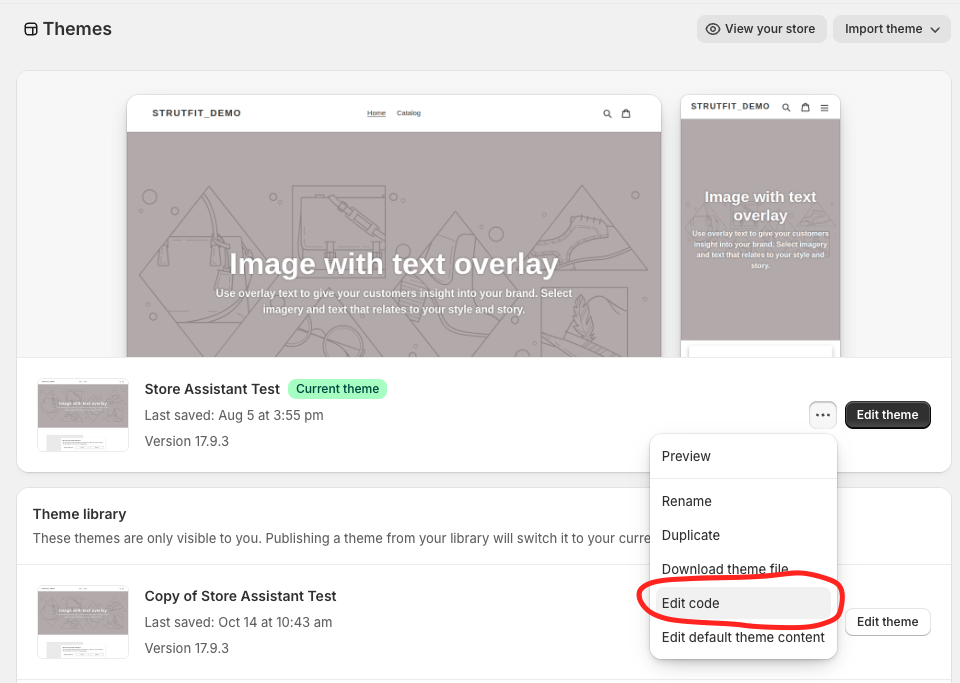
To add StrutFit to your Shopify theme you will need to edit the theme code, you can do this by clicking the "Edit code" button on the theme editor like is shown below.
Create Assistant Manager Snippet
Create a new file called strutfit-assistant-manager.liquid in the snippets folder. In this file add assistant manager script.
<script src='https://store-assistant-assistantmanager.strut.fit' async data-organization-id={{OrganizationId}}></script>replace {{OrganizationId}} with your organization id which you can find in the StrutFit dashboard or get from your StrutFit account manager.
now in your theme.liquid file add the following code to render the assistant manager snippet:
{% render 'strutfit-assistant-manager' %}Adding it to your theme.liquid file will ensure the assistant manager script is always loaded and available. This is important because the assistant manager is required for all StrutFit components to work.
Create Component Snippets
Create snippet files for all components you want to use, we recommend following the same naving convention, for example strutfit-size-button.liquid in the snippets folder. In the file add the relevant script and component code.
<script src='https://store-assistant-sizebutton.strut.fit' async ></script>

<strutfit-size-button
    product-code="{{ product.id }}"
    product-name="{{ product.title }}"
    full-width="true">
</strutfit-size-button>
Then render this where you want the component to appear. For example you will often want the size-button on your product display page (commonly product-template.liquid or main-product.liquid but this can differ depending on your theme):
{% render 'strutfit-size-button' %}