
Magento Products
This guide explains how to integrate Magento (Adobe Commerce) with StrutFit so new products in Magento are pulled into the StrutFit portal.
Creating API key for StrutFit
-
Sign in to the StrutFit dashboard with the administrator credentials you were given. If you do not have access or the right permissions, contact your StrutFit account manager.
-
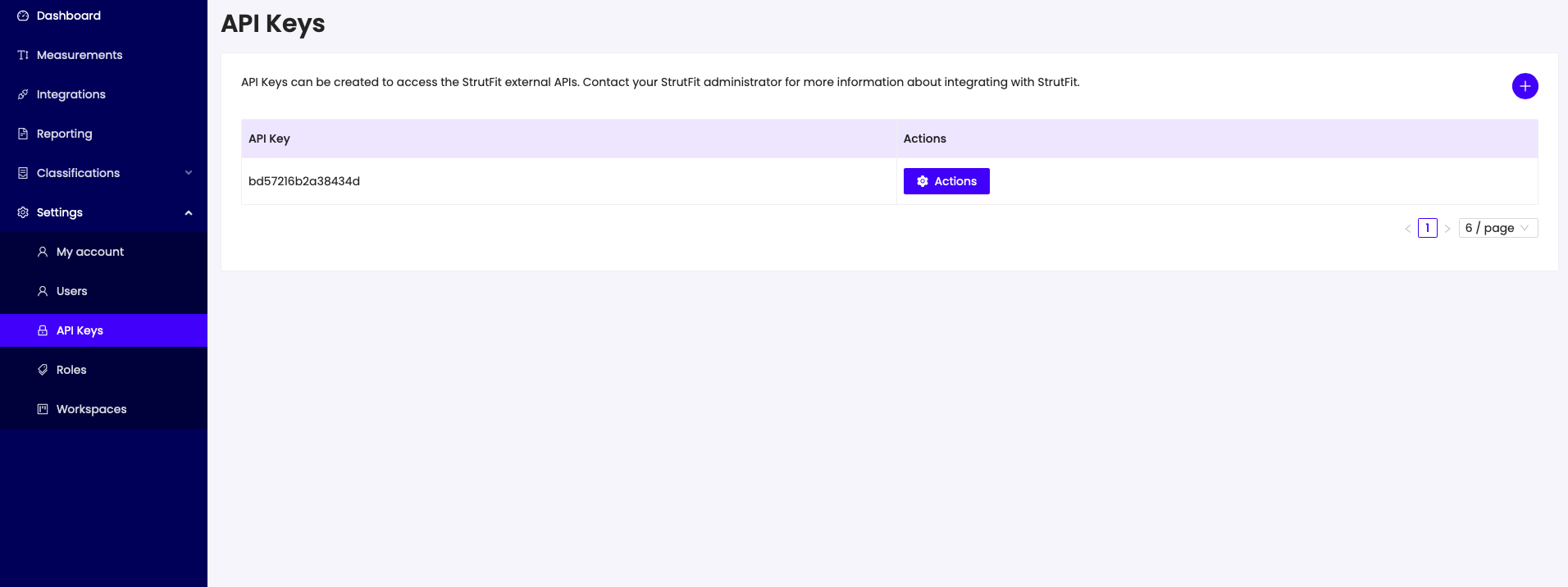
In the left menu, go to Settings > API Keys.
-
Click the Create (plus) icon in the top right to open the create API key modal.
-
The API key and secret are generated automatically. Record them somewhere secure — you cannot view the secret again after creation. Enable Use for integrations.
After you create an API key, the secret is shown only once. Store it safely before closing the modal.
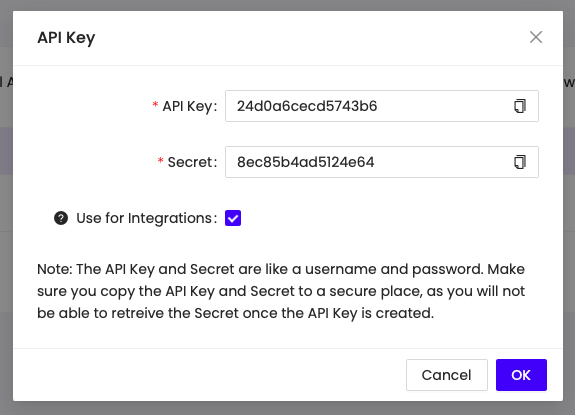
- Click OK to create the API key. It appears in the table.
Creating integration in Magento
- In the Magento admin, open the System menu (left side of the dashboard). Under Extensions, click Integrations.
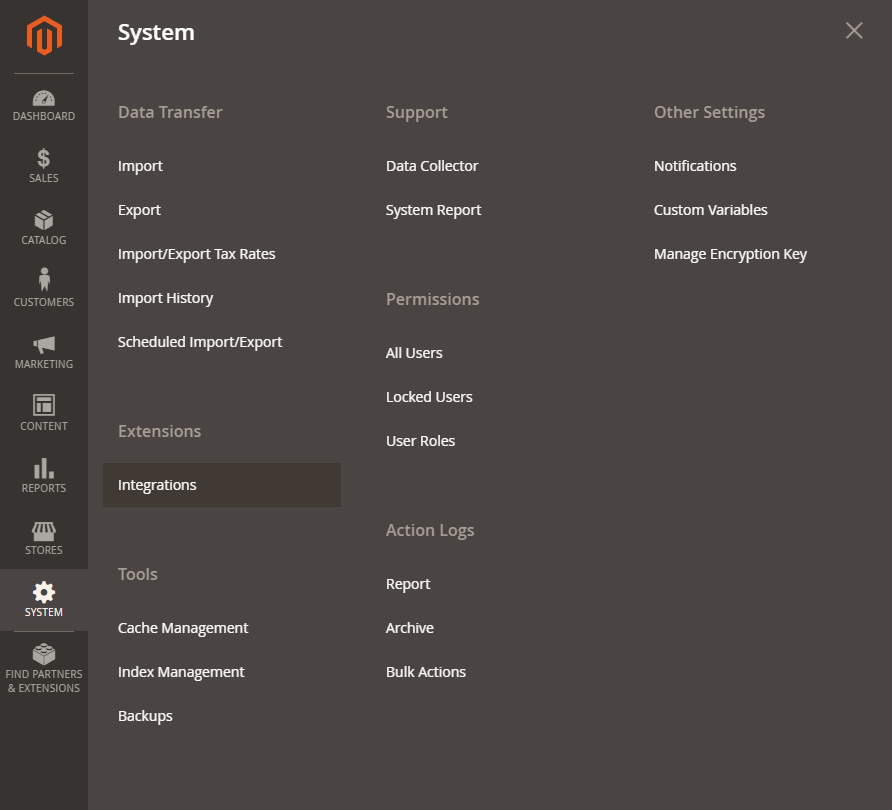
- Click Add New Integration at the top right.
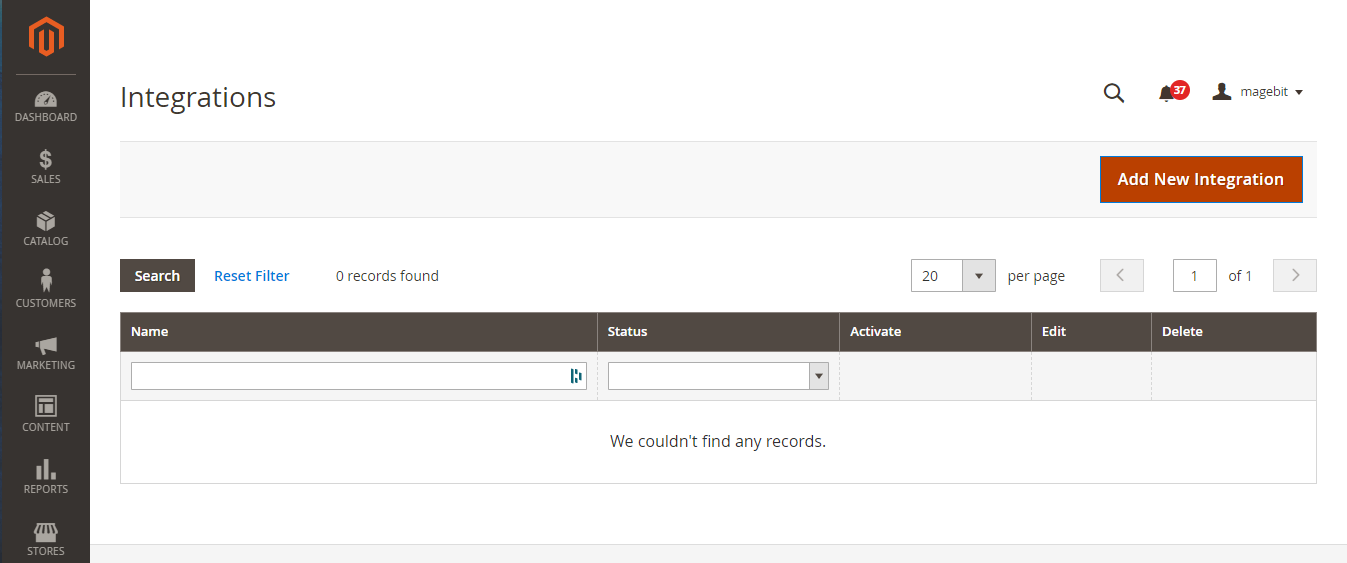
-
On the New Integration page, on the Integration Info tab, use:
- App name:
StrutFit - Email: a developer or ops email you monitor
- Callback URL: https://api.strut.fit/api/MagentoCredential/Create
- Identity link URL: https://dashboard.strut.fit/user/magentoIntegrationLogin
- Your Password: your Magento admin password
- App name:
-
Open the API tab on the left. Grant Catalog, Stores > Attributes > Product and Stores > Attributes > Attribute Set. The page should look similar to the screenshot below.
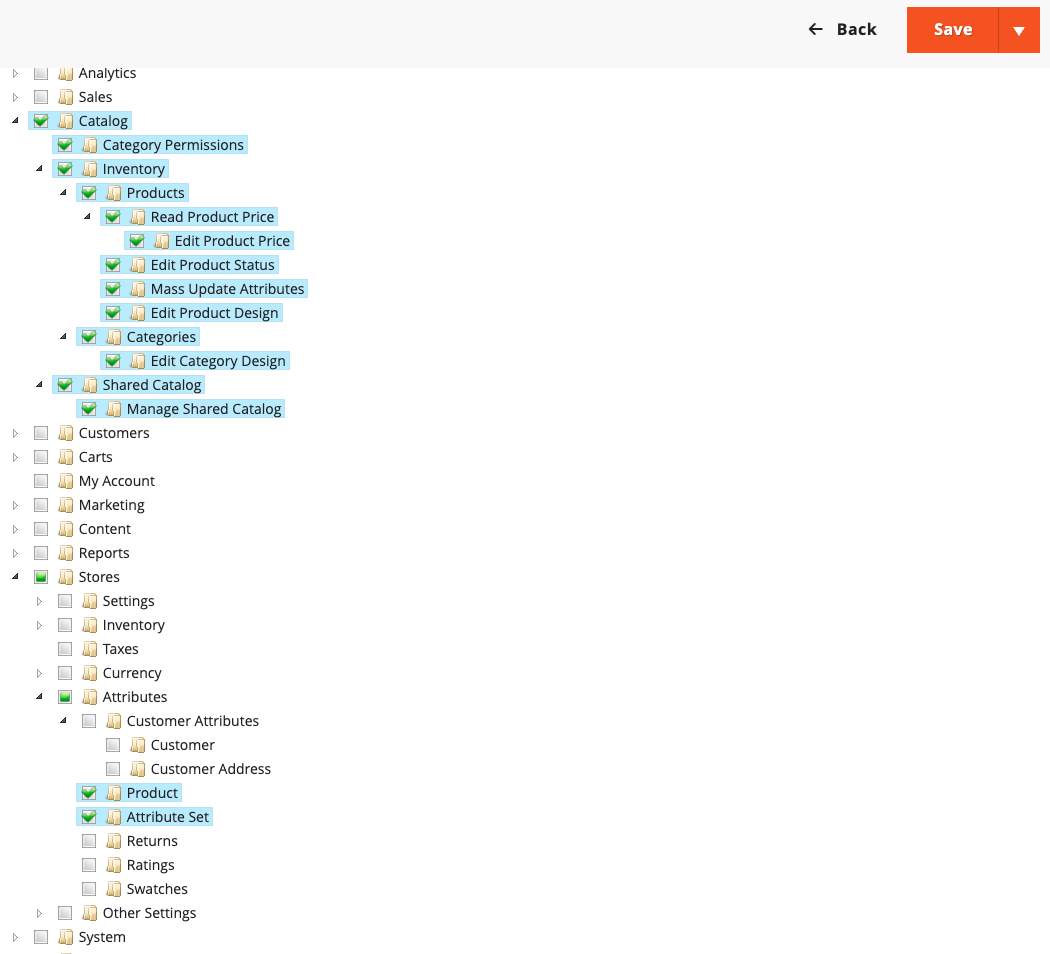
- Click Save at the top right, or use the button arrow and choose Save & Activate and skip to step 7.
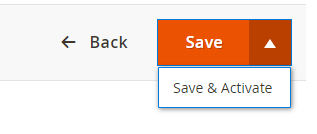
- If you chose Save only, you return to the Integrations list. Click Activate on the StrutFit integration row.

- When prompted, click Allow so the integration can use the resources you configured.
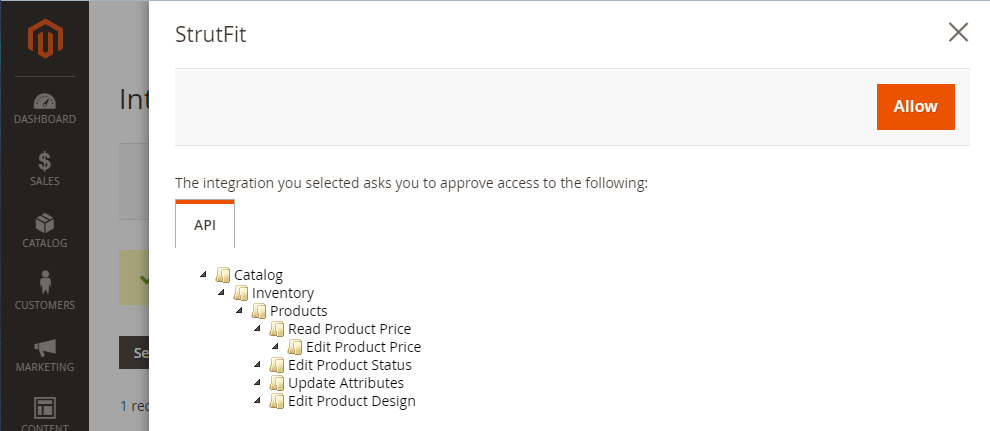
- A StrutFit Magento Integration login page opens in a popup. Enter your Workspace name (your company workspace — ask your StrutFit account manager if unsure), plus the StrutFit API key and secret you created earlier.
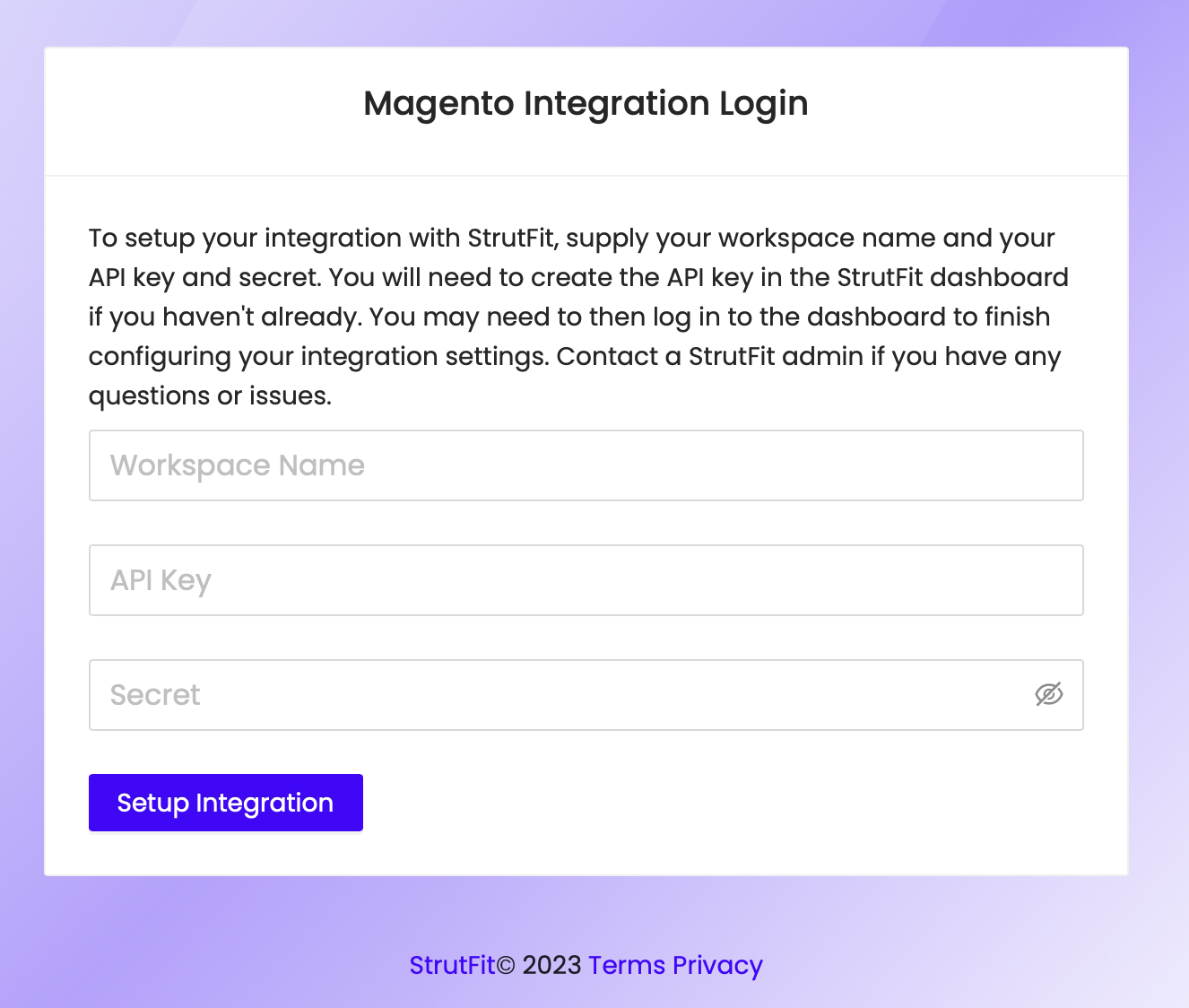
- After Setup Integration succeeds, you return to Magento. The StrutFit integration should show as active. Finish configuration in the StrutFit dashboard (next section).
Configuring the integration in StrutFit
If you do not have dashboard access
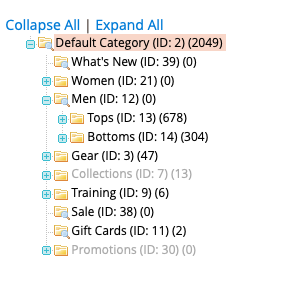
Provide the Magento category names and IDs you want integrated to your StrutFit account manager. Below is an example of how categories may appear in Magento.
If you have dashboard access
-
Sign in to the StrutFit dashboard.
-
Go to Settings > Workspaces.
-
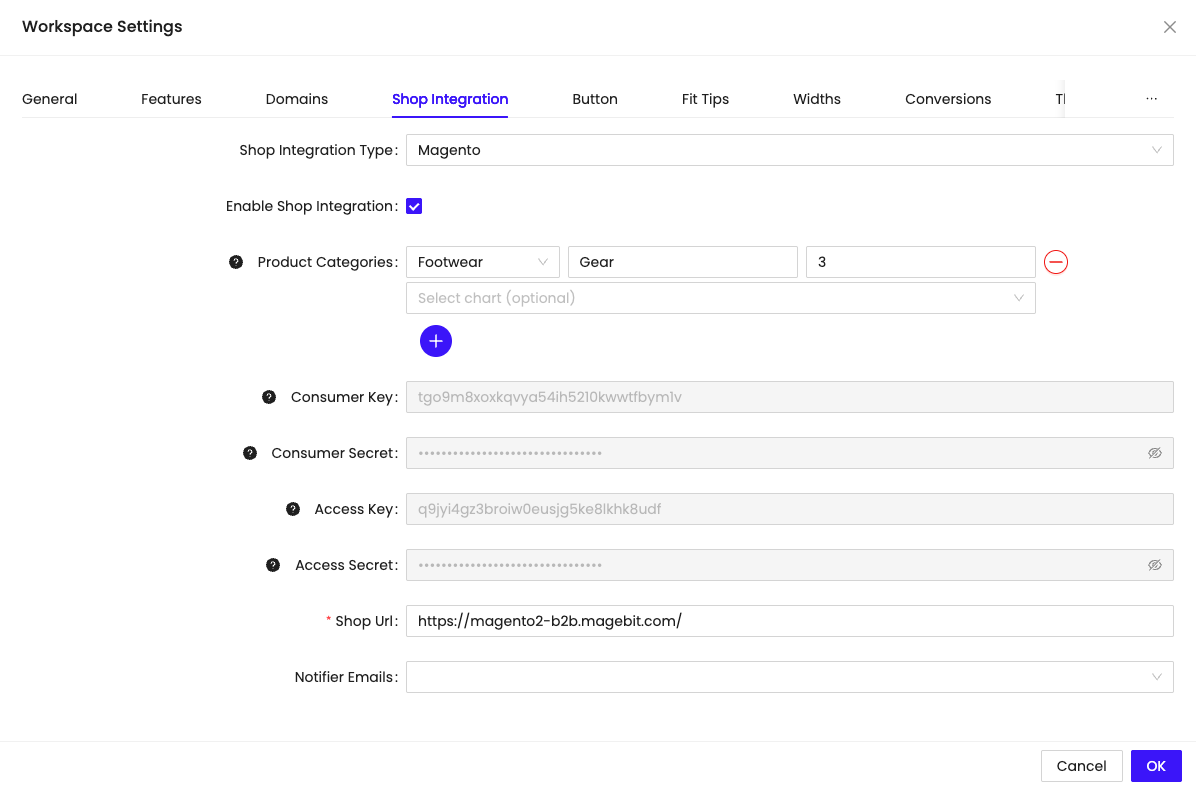
Open your workspace: Actions > Edit, then open the Shop Integration tab. You should see Magento integration details similar to the screenshot.
-
Keys and secrets are tokens StrutFit uses to connect to Magento. They were created when the Magento integration was authorized and match the permissions you set. Keep them confidential. You cannot edit them here; you can refresh them by reauthorizing the integration in Magento or by removing the integration (which stops the StrutFit side from working). Shop URL should already be correct.
-
Product categories (optional): Limit imports to specific categories by adding rows with product type category name, ID and optionally chart (this will assign a chart to all products imported from this category). If you leave this section empty, the integration imports all products from Magento and treats them as footwear. You can change product types in bulk in the StrutFit dashboard.
-
Notifier emails (optional): When new products need attention, listed notifiers are emailed. Add an address and press Enter; you can add multiple.
-
Ensure Enable Shop Integration is checked, then save the workspace.
-
In the StrutFit portal, open Integrations, go to the Products tab, and click Import from Magento to start an import. If the import fails, contact your StrutFit account manager.
-
When the import job finishes, go to Classifications > Products and assign size charts to the new items.
Scheduled import
By default, the job that imports products from Magento runs every day at 12pm NZT, so you do not need to run Import from Magento manually for every new product.
We strongly recommend setting notifier emails for whoever assigns size charts to newly imported products.