
Quick Start for Shopify
This quick start covers the most common retailer integration path: Assistant Manager, Size Button, and Tracking Pixel.
You can either follow the steps below to setup StrutFit yourself, or you can give the StrutFit dev team permission to setup StrutFit for you. All you need to do is email your StrutFit account manager with your Shopify store URL and collaborator code. The dev team will then send you an access request and integrate the app for you.
Edit the theme code
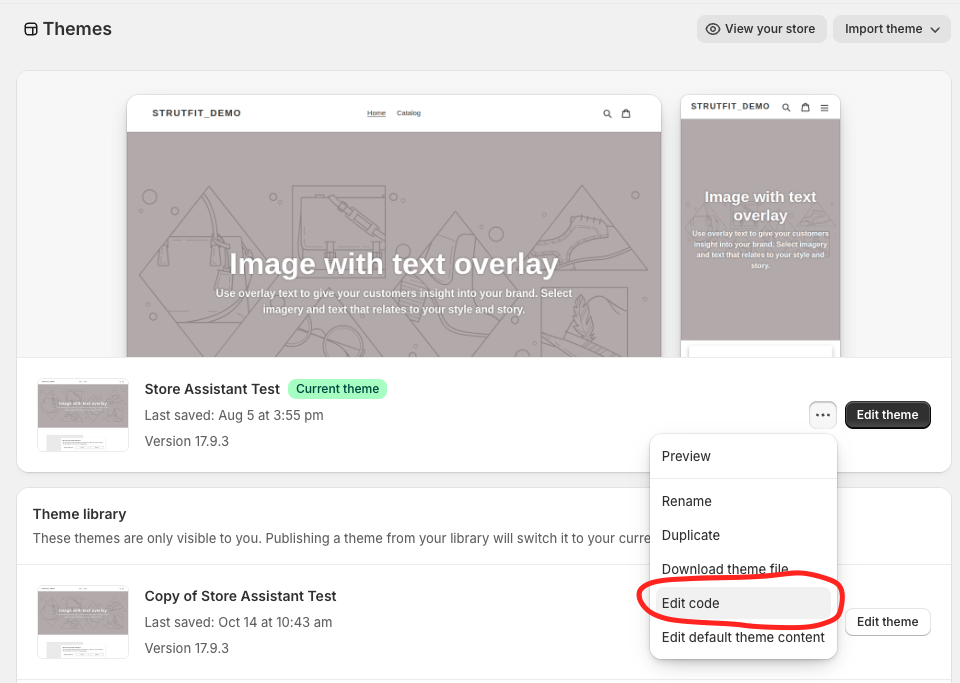
To add StrutFit to your Shopify theme you will need to edit the theme code, you can do this by clicking the "Edit code" button on the theme editor like is shown below.
Add the Assistant Manager
Create a new file called strutfit-assistant-manager.liquid in the snippets folder. In this file add assistant manager script.
<script src='https://store-assistant-assistantmanager.strut.fit' async data-organization-id={{OrganizationId}}></script>replace {{OrganizationId}} with your organization id which you can find in the StrutFit dashboard or get from your StrutFit account manager.
now in your theme.liquid file add the following code to render the assistant manager snippet:
{% render 'strutfit-assistant-manager' %}Adding it to your theme.liquid file will ensure the assistant manager script is always loaded and available. This is important because the assistant manager is required for all StrutFit components to work.
Learn more: Assistant Manager Guide
Add StrutFit components
Add the Tracking Pixel and Product Integration
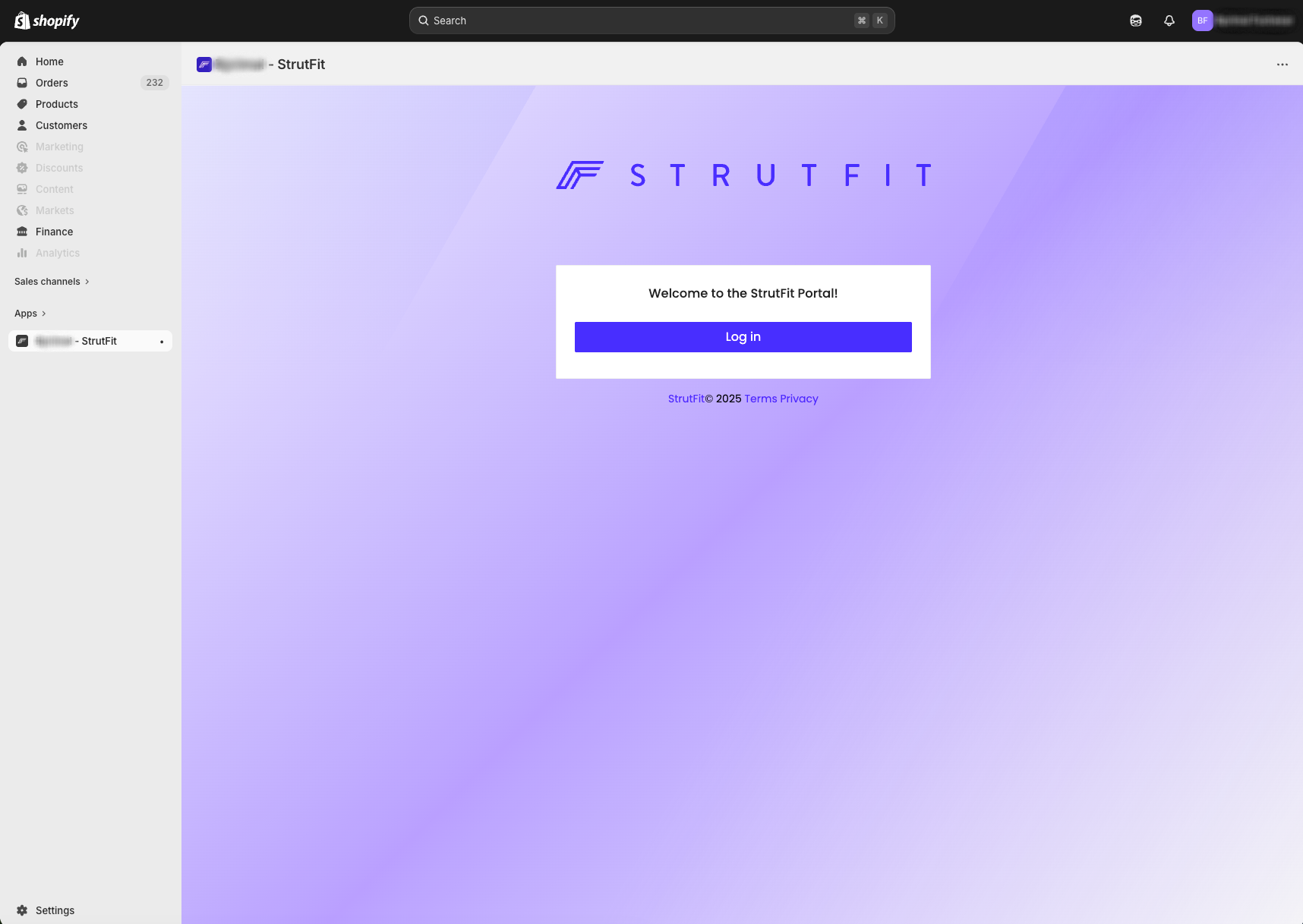
To install the StrutFit Shopify app, all you need to do is get an install link from your StrutFit account manager and paste it into your browser while logged in to your Shopify store. You will then see a screen like the one shown below where you may log into the StrutFit dashboard.
Validate the full flow
- Visit a product page and confirm the size button appears (remember you also must have the product integrated in StrutFit with a valid size chart for this).
- Click the size button and confirm the assistant opens.
- Complete a test order and confirm the tracking pixel sends the appropriate values.